Introducing Geo-Tag Attendance Feature for SDAT
As per the guidance of the SDAT leadership team, we have developed and implemented the Geo-Tag Attendance feature for coaches within the SDAT AMS platform.
With this feature:
Coaches are required to mark their attendance only when they are physically present at the ground.
Attendance must be submitted along with a geo-tagged image upload within the platform.
This ensures accurate and location-verified attendance tracking.
Dashboard Visibility for Officials:
The following stakeholders can monitor attendance through the dashboard:
SDAT Leadership Team (Member Secretary and General Manager)
RSMs
DSOs
Stadium Officers
Hostel Managers
They can view:
Daily attendance of coaches
Location details (geo-tagged)
Uploaded images as proof of presence
Impact:
This feature enables:
Transparent and accurate attendance tracking
Real-time compliance monitoring
Improved accountability across coaching staff
Operational Requirement:
To operationalize this feature effectively, all stadiums and grounds must be geo-tagged within the platform.
This includes venues where the Hostel athletes , STAR Academy athletes and Khelo India athletes are training
Accurate geo-tagging of all training locations is essential to ensure reliable attendance tracking, location validation, and overall system effectiveness.
Note:
During this process, the person tagging the location should stand at the center of the venue to ensure accurate GPS mapping.
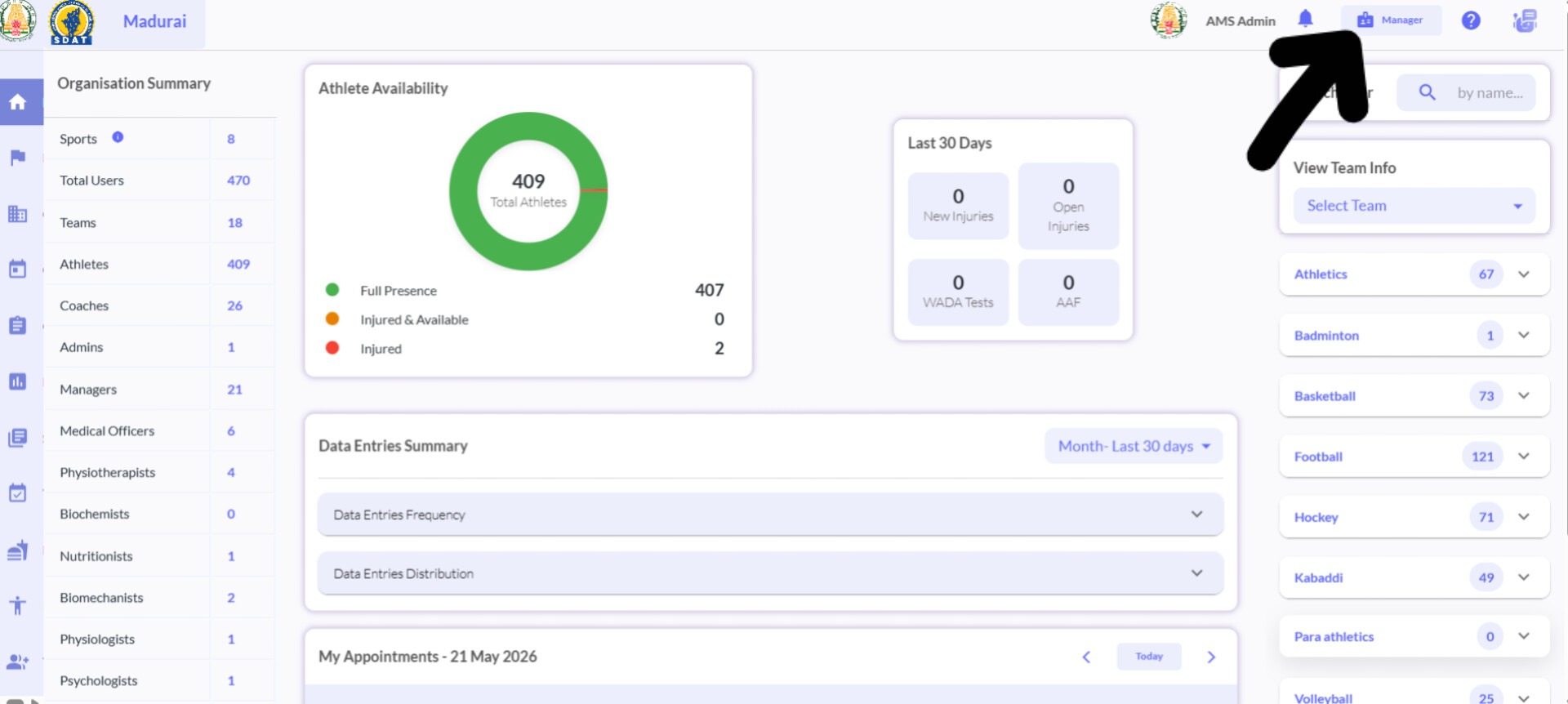
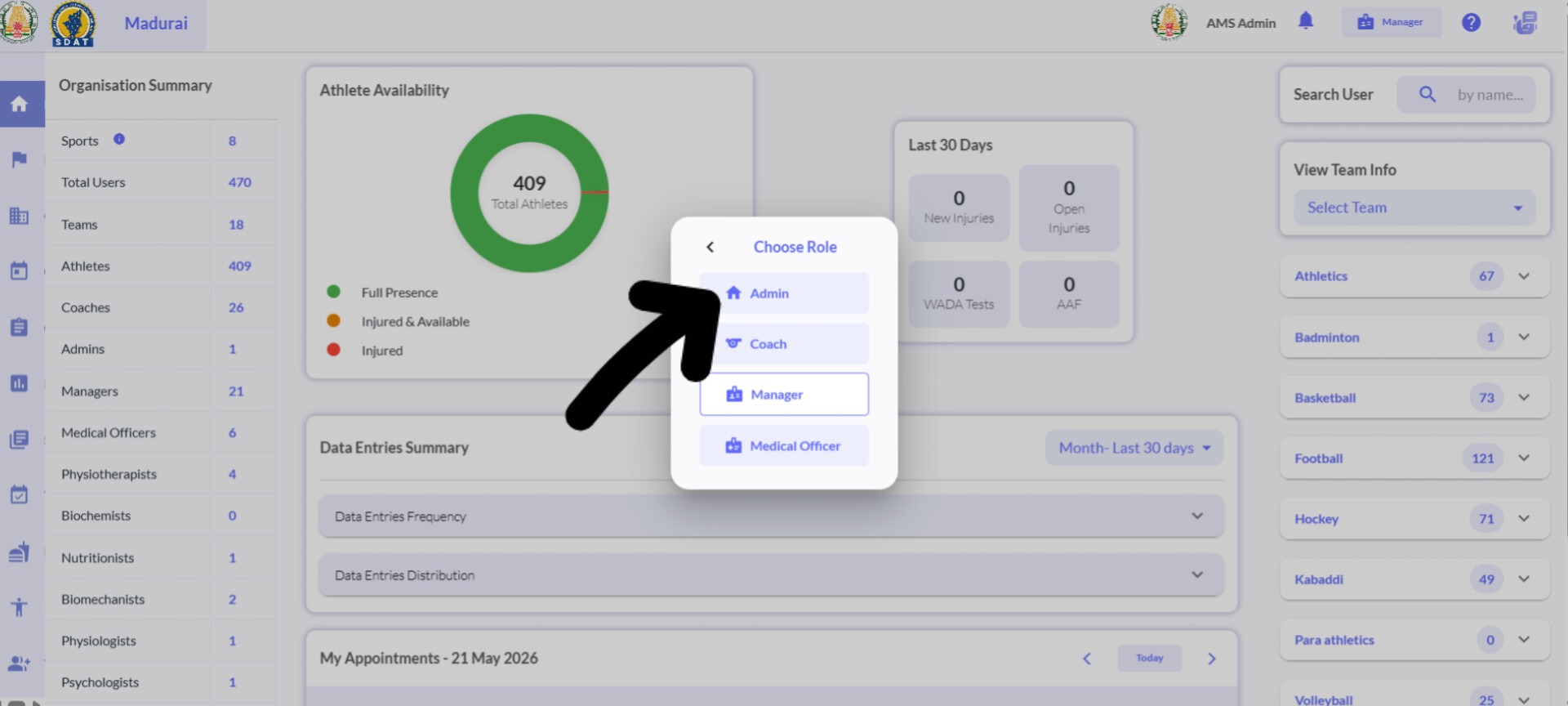
Step 1: Switch Role
Tap the Manager icon on the top right corner of the Home Page.
Select Admin.
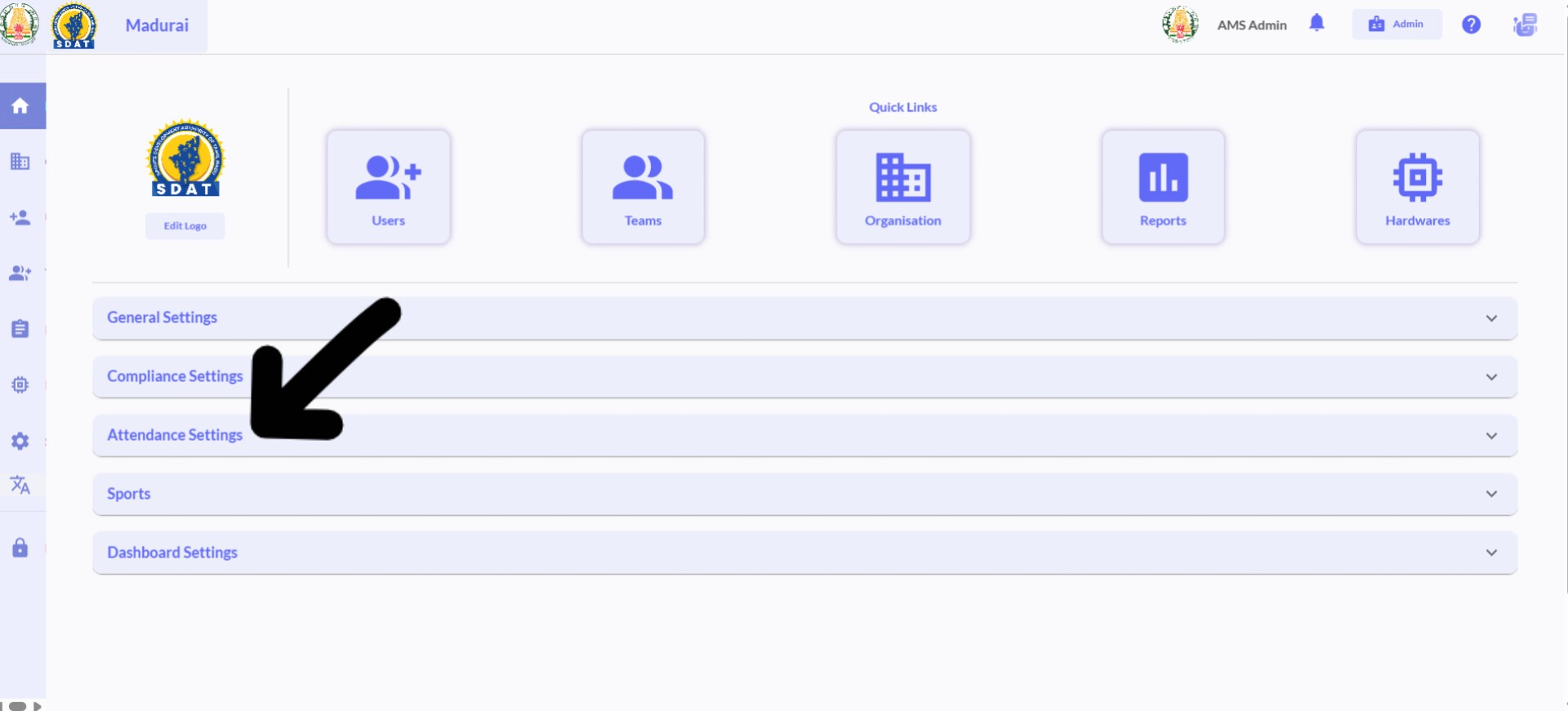
Step 2: Navigate to Venue Registration
From the Admin Home Page, Tap Attendance Settings.
Under the Registered Venues section, Tap the “Add Venue” icon on the right side.
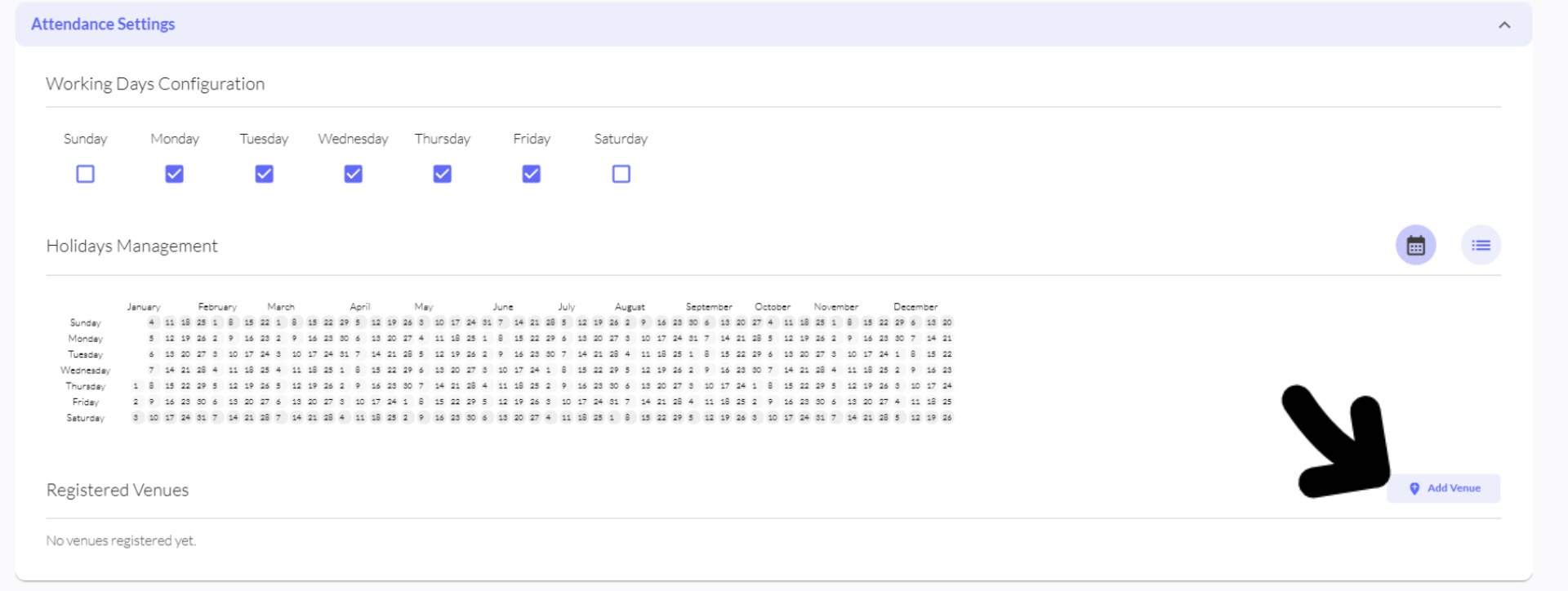
The Add Venue form will open.
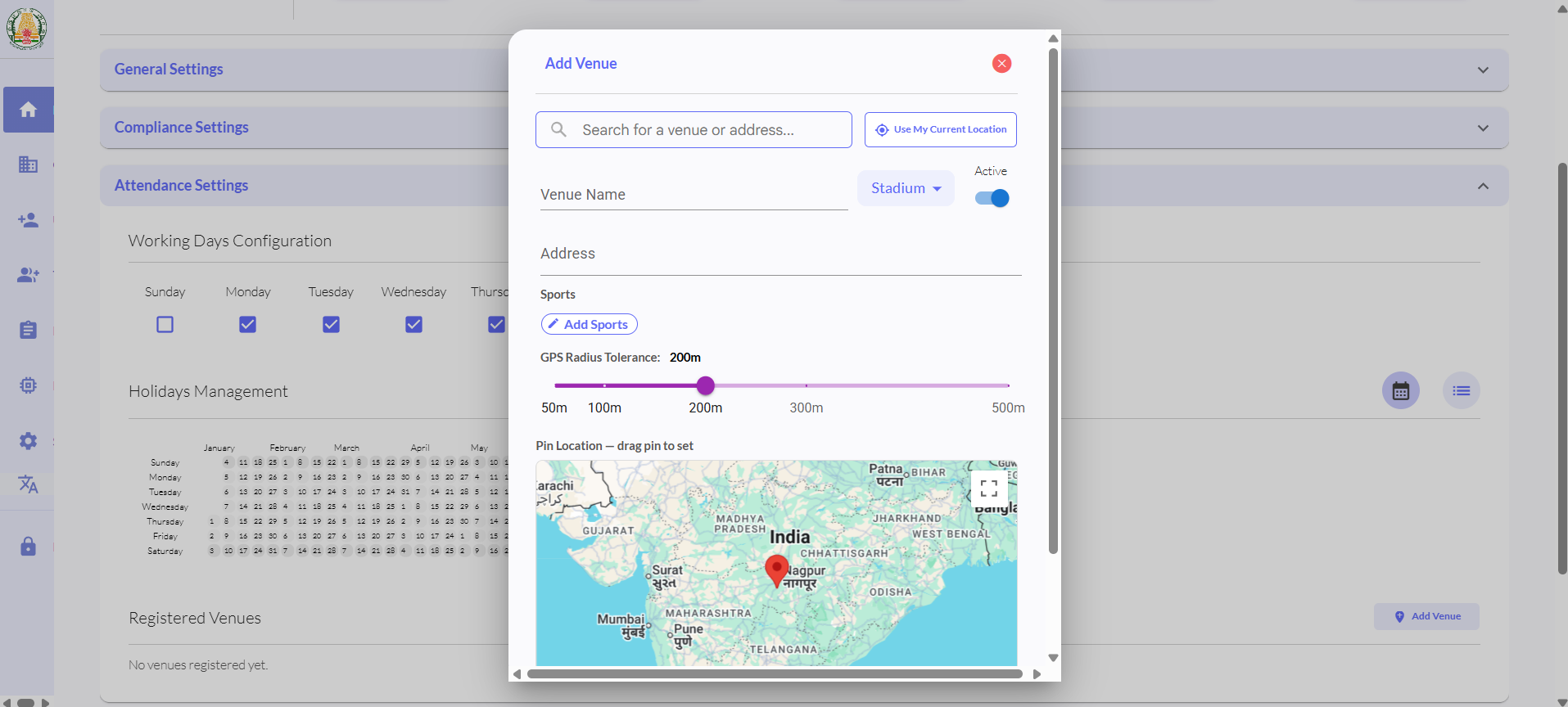
Step 3: Add Venue Details
Tap “Use My Current Location”.

Allow location access by selecting “Allow while visiting the site” in Chrome.
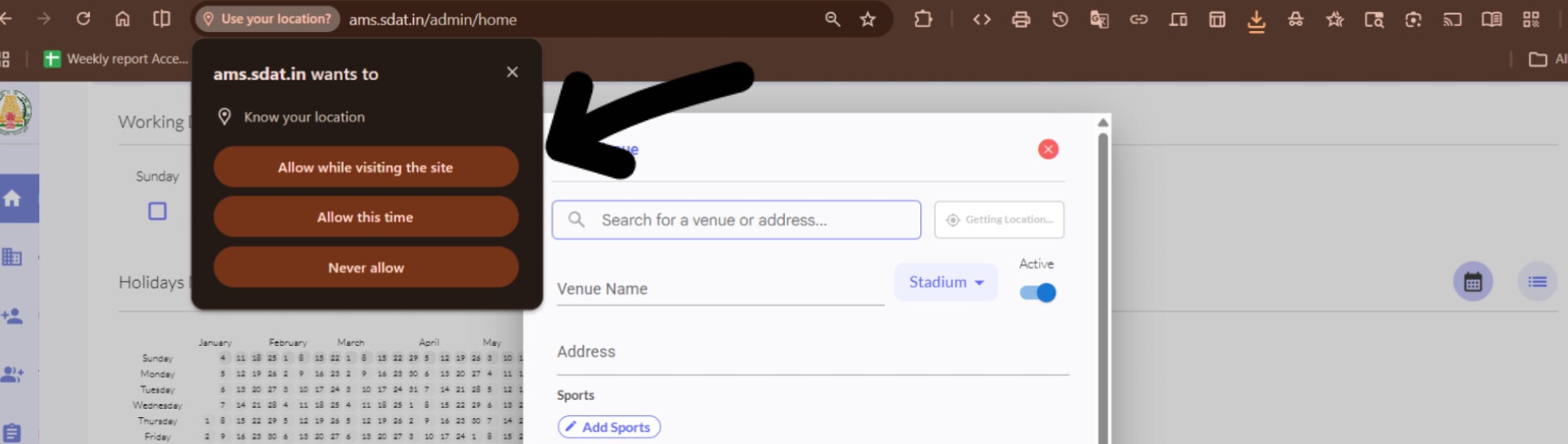
Again Tap “Use My Current Location”.The system will automatically capture your location.


Now fill in the following details:
Enter the Venue Name.

Select the Venue Category:
Choose Stadium or Ground based on the venue type.
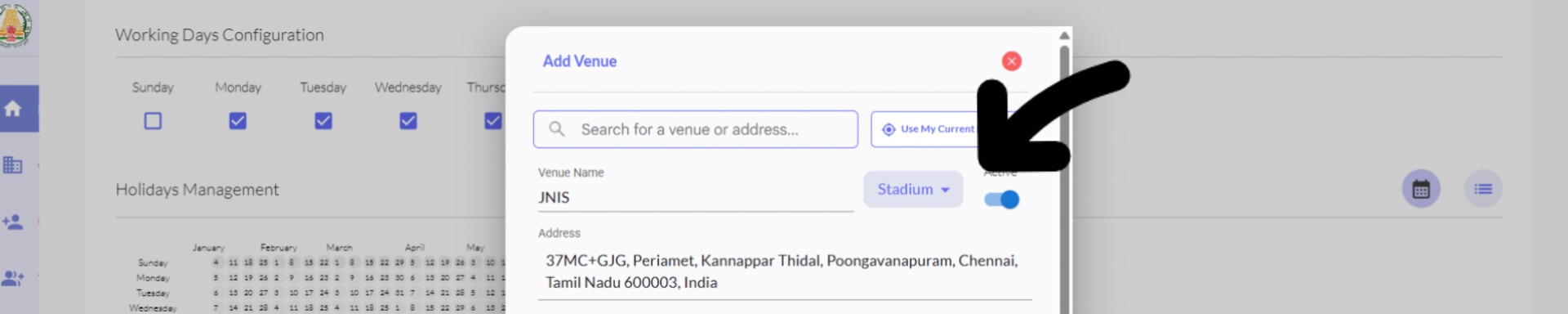
Select the Sports which all practiced at that venue.
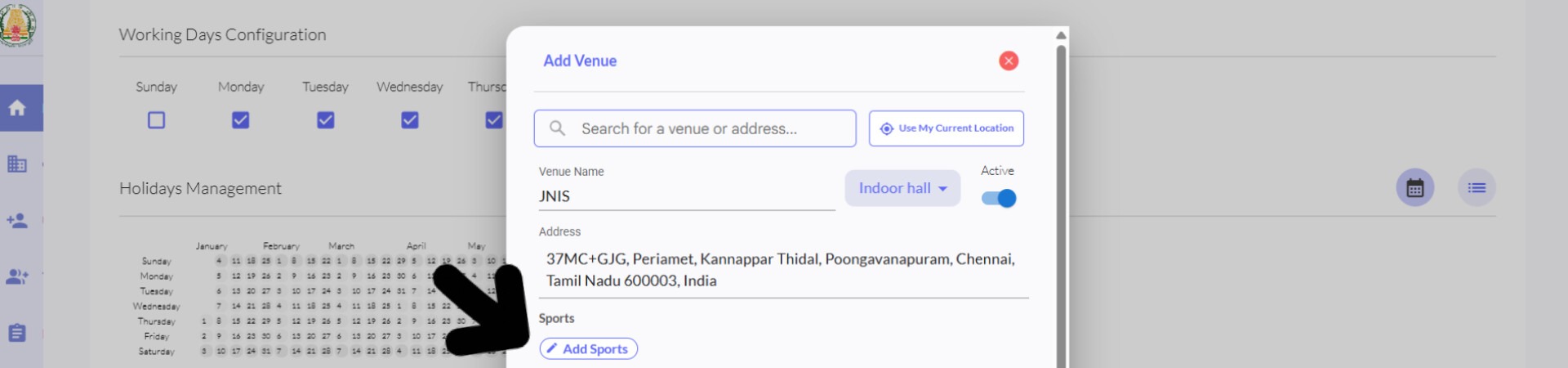
Step 4: Set GPS Radius
For small grounds or stadiums → set 200 meters
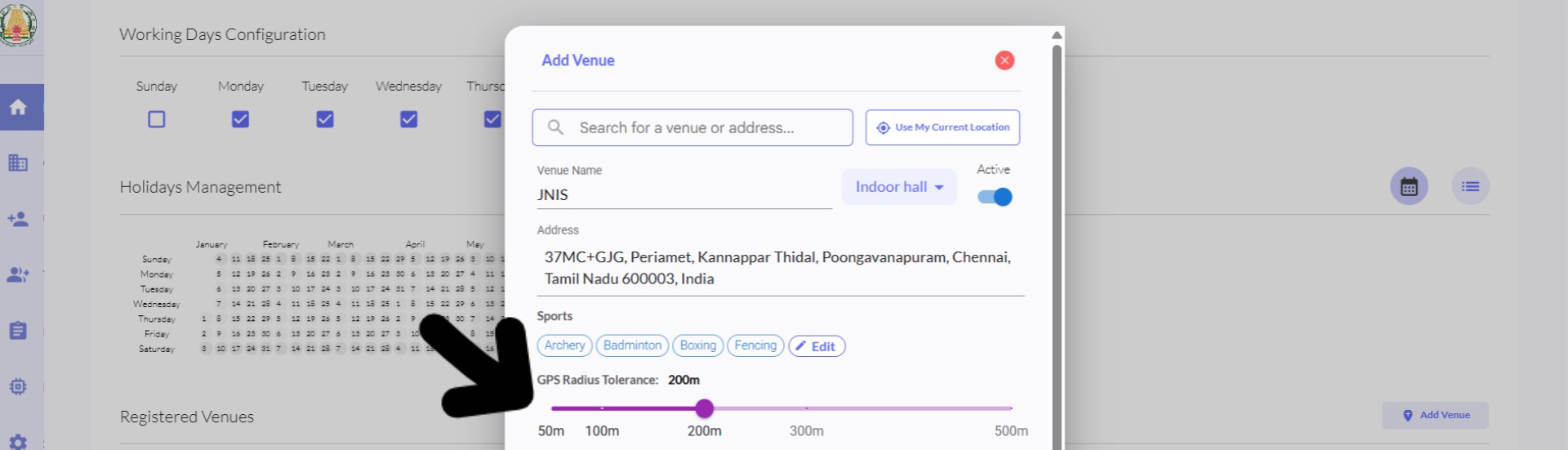
For large facilities (e.g., JNS, JNIS) → set 300 to 500 meters
Step 5: Save Venue
Double-check all entered details.
Tap “Save Venue” to complete the process.
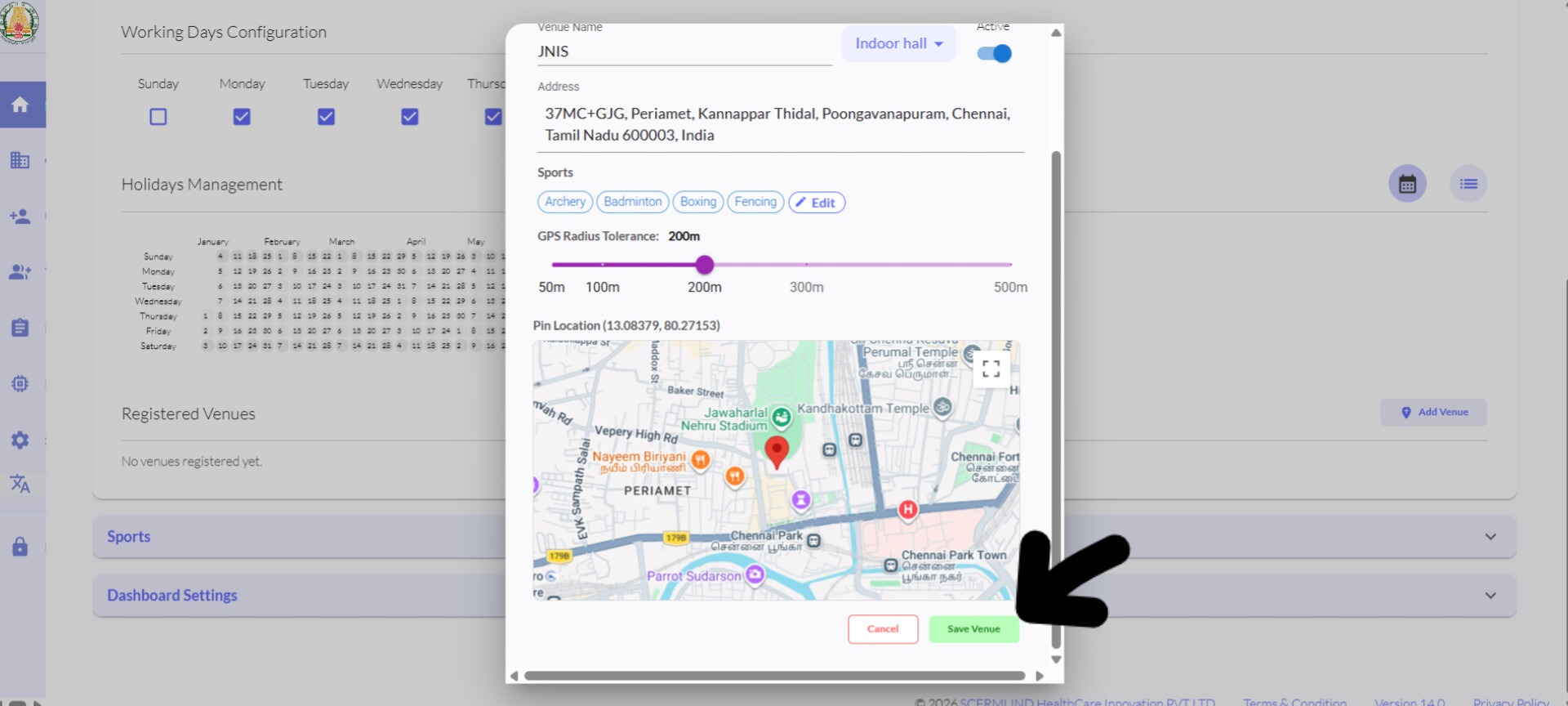

Registered Venue
Geo-Tagging for STAR Academy & Khelo India
Geo-tagging for STAR Academy and Khelo India follows the same process. However, you need to switch the environment before proceeding.
Steps to Switch Environment
Tap your Region Name on the top left corner.
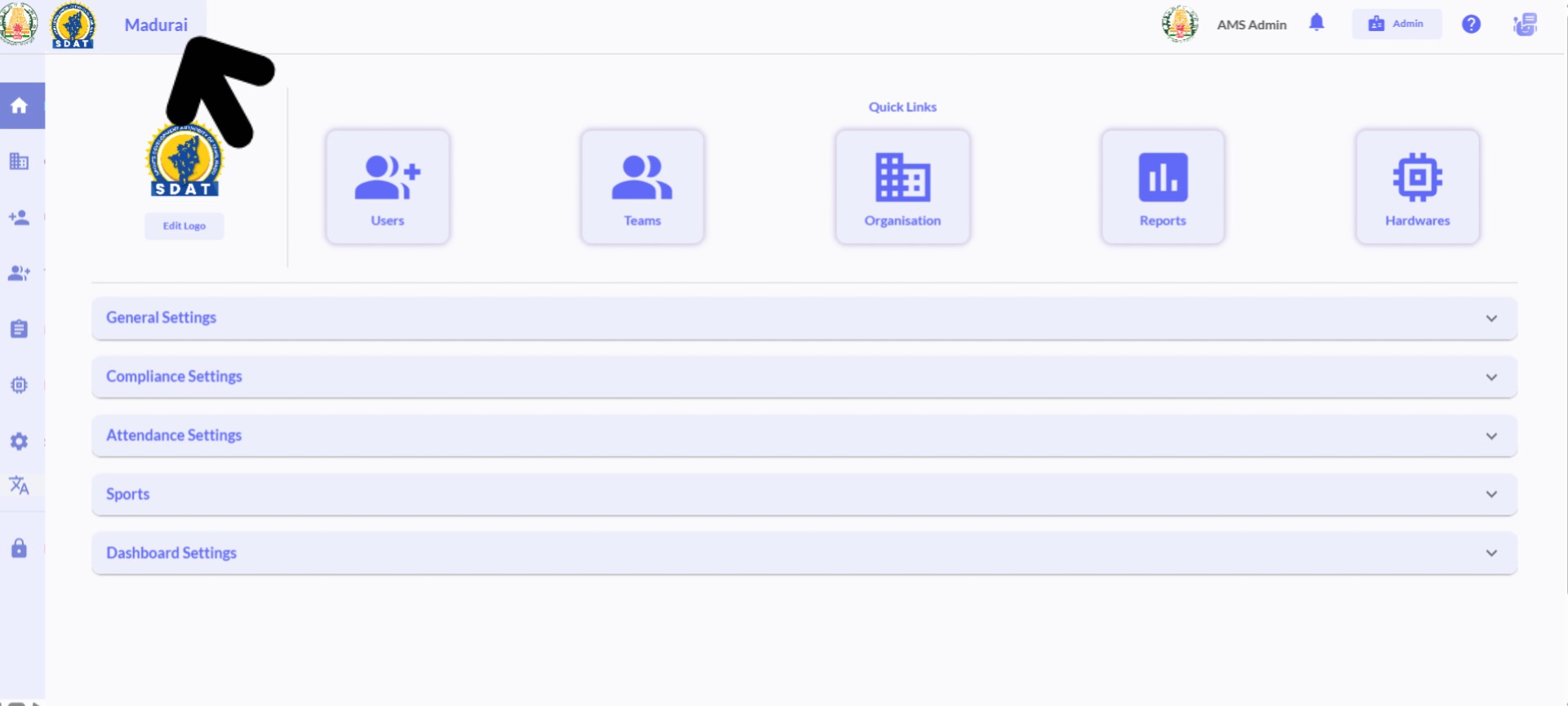
Select the allotted STAR Academy or Khelo India environment (only one environment at a time).
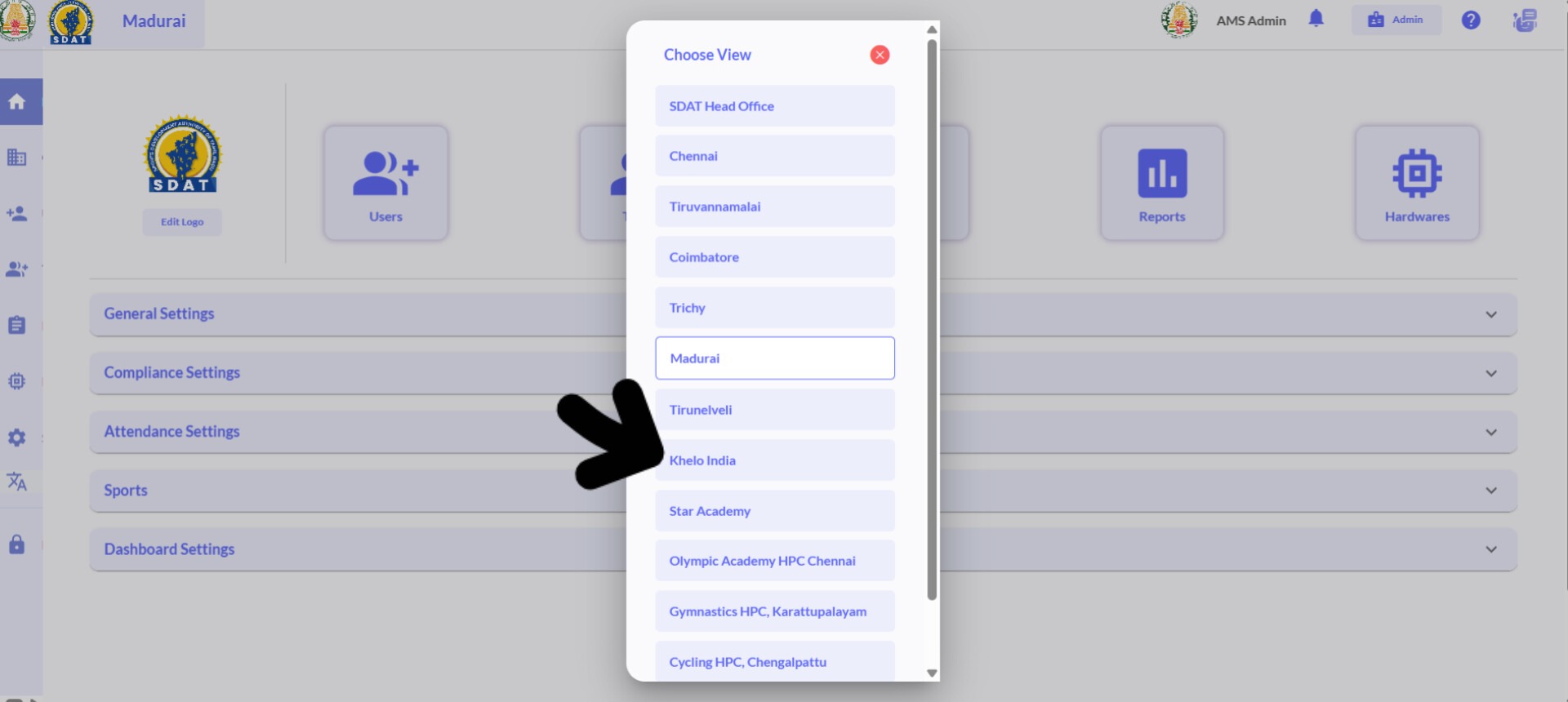
Proceed with Geo-Tagging
Once switched, follow the same venue mapping steps to geo-tag the location.
Was this article helpful?
That’s Great!
Thank you for your feedback
Sorry! We couldn't be helpful
Thank you for your feedback
Feedback sent
We appreciate your effort and will try to fix the article